
Follow a website
Use discovery and capture jobs to work through website pages.
Local website inventory and PNG capture
Discover website pages, record their details and save full-page PNG captures on your own computer.

Page records and image files
Bring website inventory and full-page screenshots into a local workflow.
Use discovery and capture jobs to work through website pages.
Record the URL, title, status and canonical URL where available.
Unique pages and repeated observations remain distinct.
Produce full-page PNG files for successfully photographed pages.

A workflow with a clear starting point
Organise a project and website, then move through Discovery Definition and Capture Job.
Review the inventory and screenshot results in the same local workflow.
A five-stage local workflow
Each stage has a place in the same local workspace.
Organise the work within a project.
Identify the website for the project.
Define the discovery step for the website.
Run a capture job using the discovery workflow.
Review the page records, screenshot status and results.
The Capture workspace
Keep useful page information with the result of each capture job.
Move from a project and website through discovery, a capture job and its results.
Record URL, page title, HTTP status and canonical URL where available.
Keep crawl depth, processing time and page outcome with the inventory.
Review unique pages separately from repeated link observations.
Keep queue entries and failures separate from the final crawl report.
Save one full-page PNG for each successfully photographed page.
See capture status and recorded image dimensions in the results.
Keep screenshot files in local application data by default.
Different records, clearly separated
Review each type of record in its own context.
Keep a separate record of unique pages.
Retain repeated link observations separately.
Keep the processing queue distinct from page results.
Review failures and the final crawl report as separate records.
Understand each page outcome
Use structured inventory details alongside the captured image files.
Record the page URL and page title.
Keep HTTP status and canonical URL where available.
Record crawl depth and processing time.
Keep the page outcome with the inventory record.

Full-page screenshot files
Save one full-page PNG for each successfully photographed page.
See screenshot status and dimensions. Failures remain recorded without a viewport-only replacement.
Clear output, clear expectations
Use the image files and results for their distinct purposes.
One PNG is saved for each successfully photographed page.
Failures are recorded without a silent viewport-only substitute.
See screenshot status and dimensions in the results.
Open the saved images separately; no results gallery is promised.
Capture access
Capture has its own access entitlement.
Capture requires its own paid entitlement.
A free account by itself does not include paid Capture access.
Ownership of another VISINVOKE product does not grant Capture access.
The two products have separate purposes and access.
VISINVOKE means value
Use one local workflow for website inventory and full-page screenshots.

Keep page address, title and status where available.
Separate unique pages, repeated links, queue entries and failures.
Use the PNG files saved for photographed pages.
Keep screenshot storage in local application data by default.
Explore your VISINVOKE workspace
Each card opens its own product website. Review purpose and access separately; related products do not promise included access or automatic synchronisation.

Open your VISINVOKE desktop products.
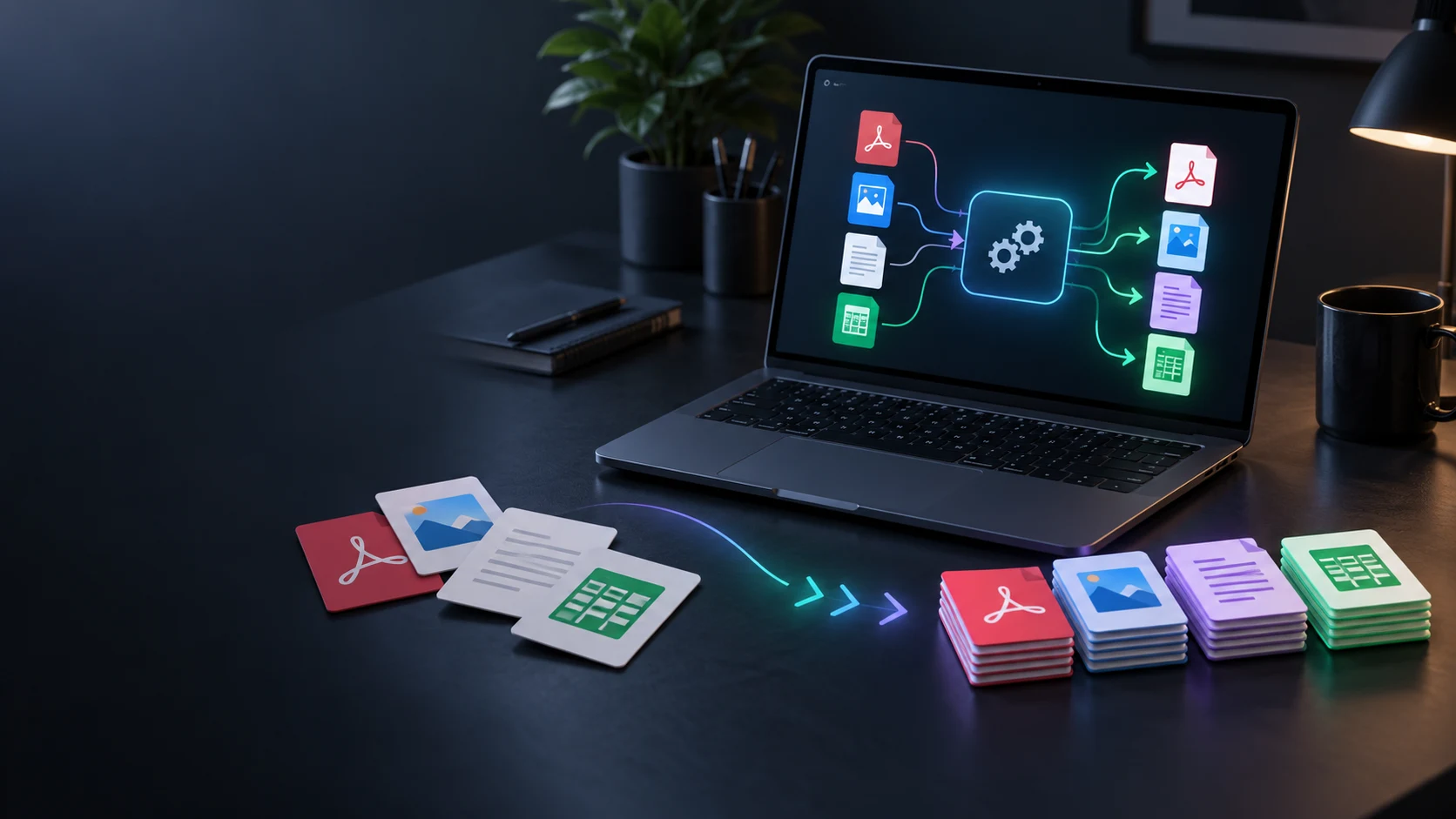
Convert supported files into compatible output formats.

Explore a separate toolkit for image work.
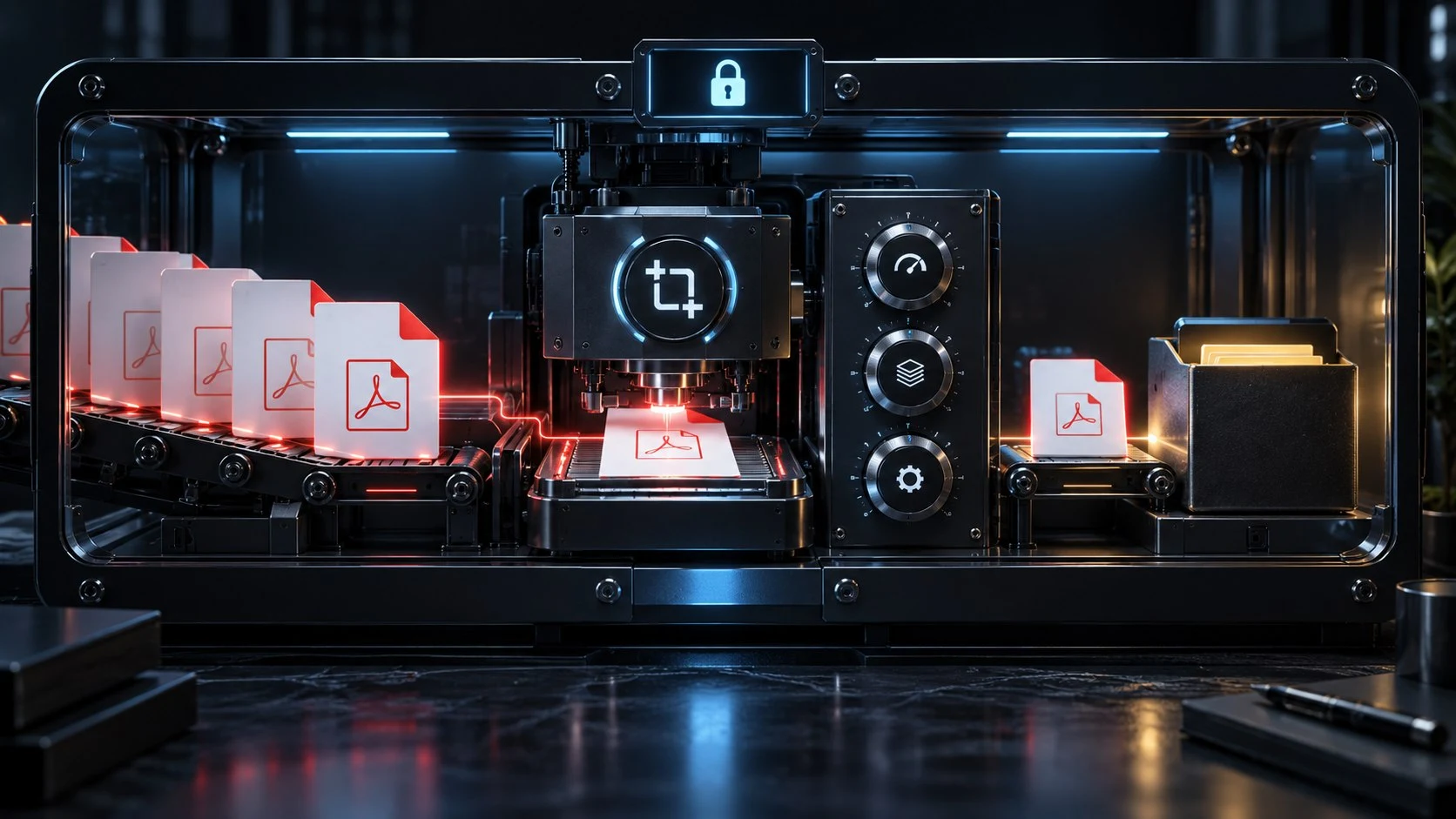
Explore a separate toolkit for PDF work.
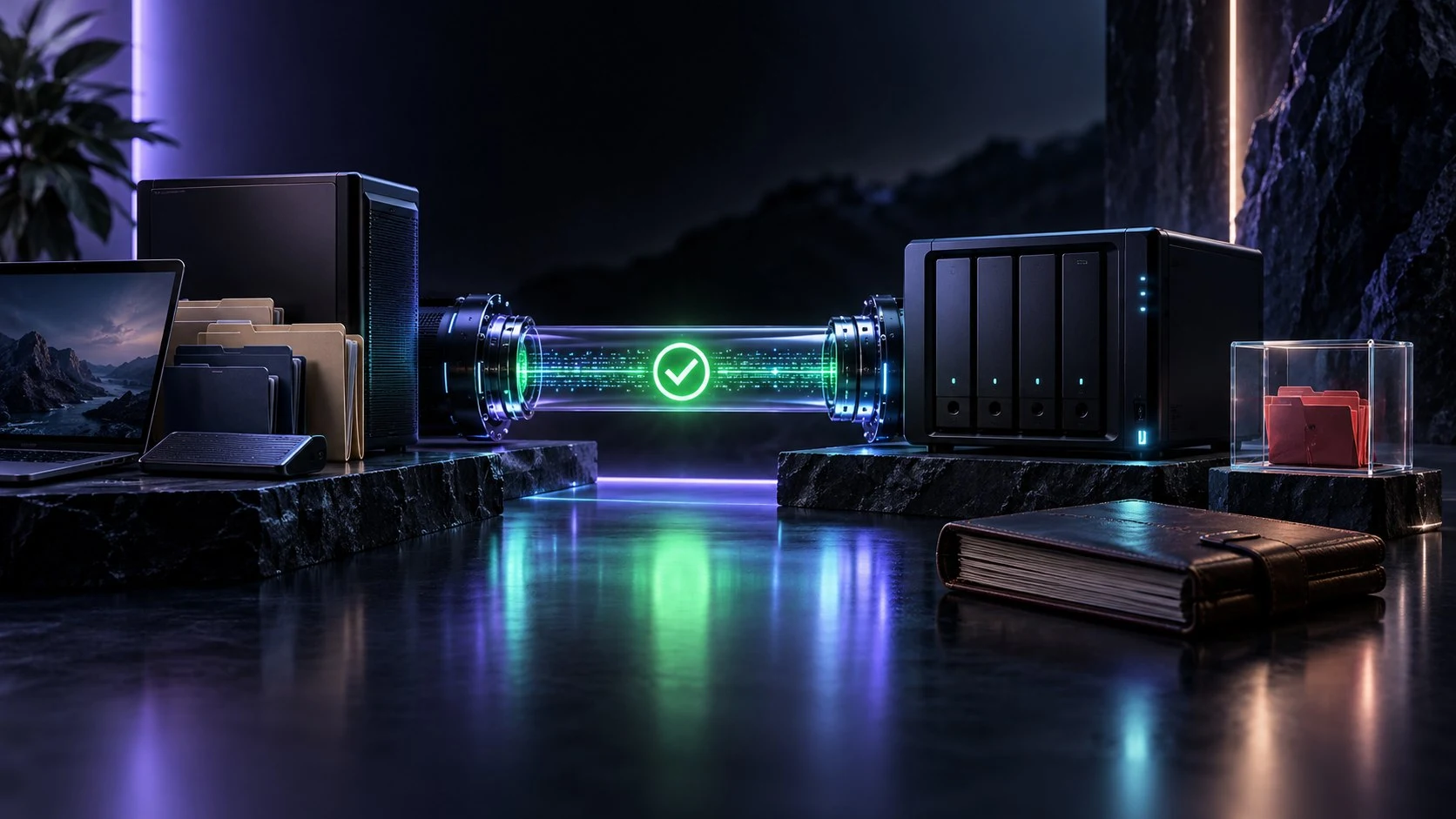
Explore a separate utility for local backup work.
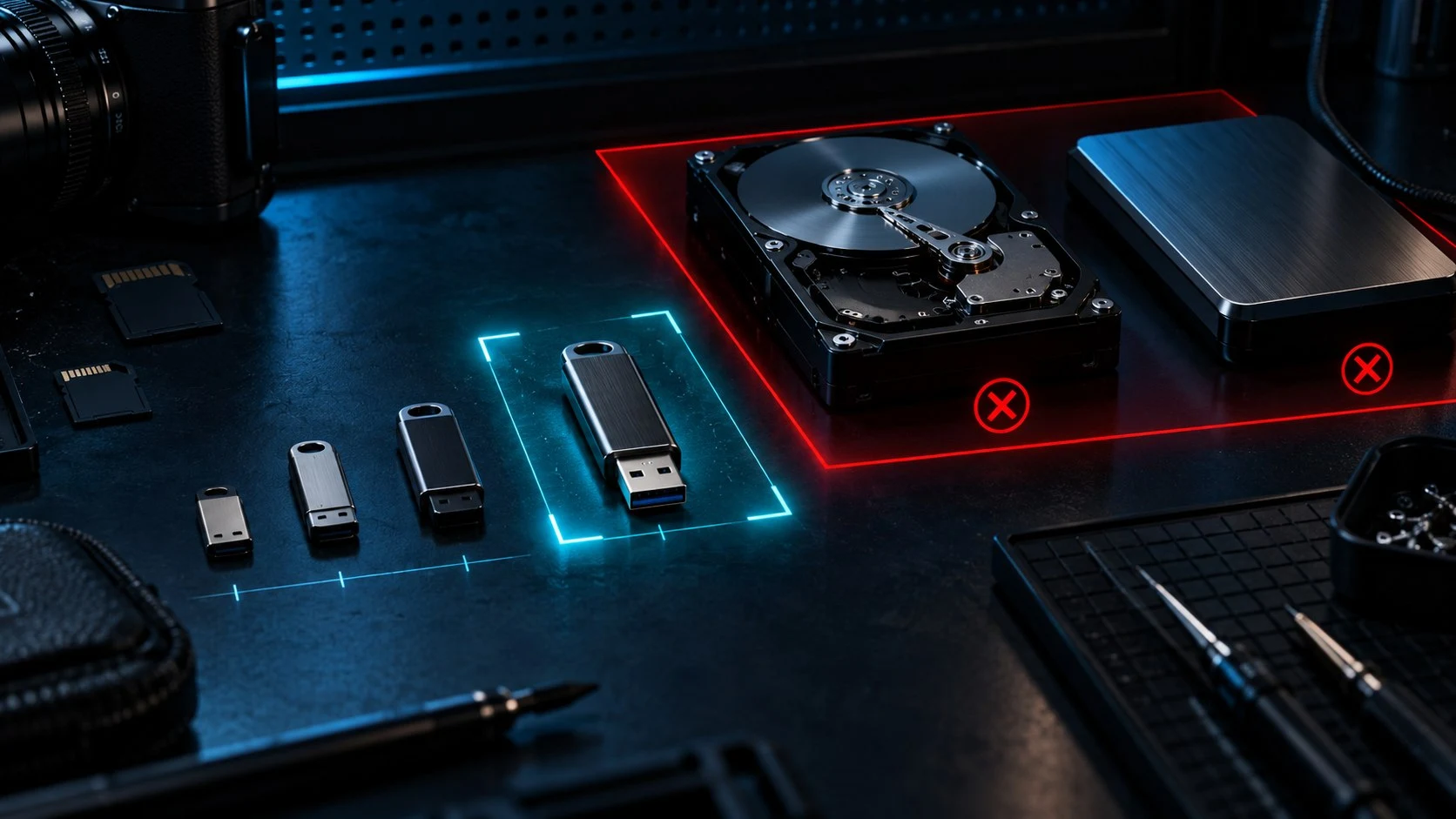
Build and maintain managed USB content.
Product artwork is illustrative, not application screens or actual generated image output.
Quick answers
Page inventory, image files and product access each have a clear purpose.
VISINVOKE Capture is a local desktop application for website discovery, structured page inventory and full-page PNG capture. Its workflow follows Project, Website, Discovery Definition, Capture Job and Capture Results.
It records URL, page title, HTTP status, canonical URL, crawl depth, processing time and outcome where available. Unique pages, repeated link observations, queue entries, failures and the final crawl report are kept as separate records.
Capture saves one full-page PNG per successfully photographed page. Animations are disabled during capture. A screenshot failure is recorded rather than silently replaced with a viewport-only capture.
The results show screenshot status and dimensions. The screenshot files are the image output; the results view does not provide a thumbnail, preview or gallery.
Screenshot storage defaults to local application data on your computer. The Capture dashboard runs locally, and page discovery uses a Chromium browser to visit the selected website.
VISINVOKE Capture and Website Capture Suite are separate products. Capture requires its own paid entitlement; a free VISINVOKE account or ownership of another product does not grant Capture access.
Your VISINVOKE workspace
Use your account installer page for Desktop Command Centre.
Capture opens through its dedicated Desktop Command Centre entry and requires its own paid entitlement.